Editing and exporting
Blur or spotlight part of a recording
Hide an email, a password or a name with a blur mask, or dim everything around one area with a spotlight, in the web editor and the desktop app.
A blur hides what is under its box. A spotlight dims everything around its box, to draw the eye to one part of the screen. Both stay on target when the video zooms or is cropped.
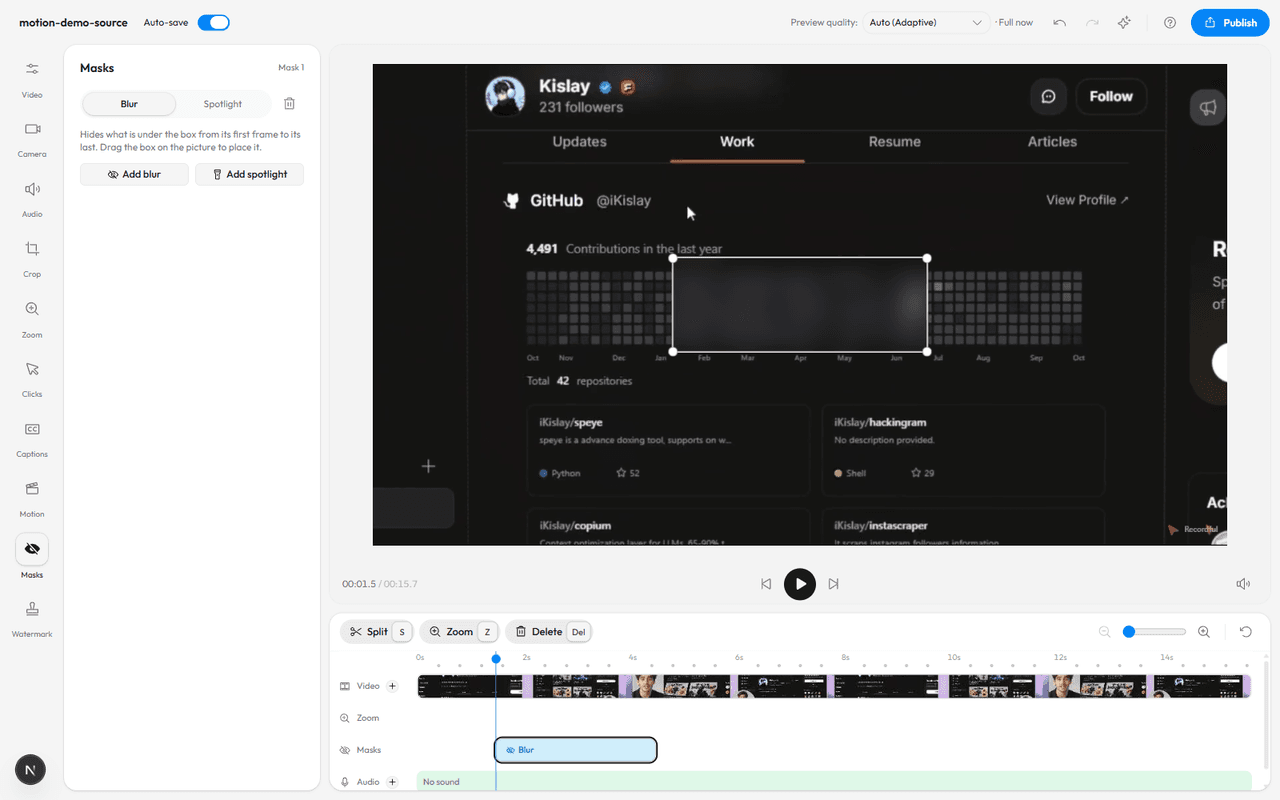
In the web editor
- Open a recording in the editor and move the playhead to where the mask should start.
- Click Masks in the left rail, or press 9.
- Click Add blur or Add spotlight. The mask lands at the playhead.
- Drag the box on the picture to place it, and its corners to size it.
- Drag the mask on the Masks row of the timeline to change when it starts and ends. Switch between Blur and Spotlight at the top of the panel, or delete it with the bin.
Where a browser can't blur, a blur mask becomes a coarse mosaic instead, so nothing under it shows through. Masks are saved with the edit, including a cloud recording's edit, and are in the exported video.
In the desktop app
In the desktop app, masks are annotations:
- Add an annotation: press A, or click Annotate above the timeline.
- In its settings, pick Blur or Spotlight.
- Drag the box on the preview to place it, and the annotation on the timeline to time it.
Good to know
- A mask covers the box for its whole time on the timeline. To follow something that moves, add a second mask where it goes.
- The original recording is never changed. The mask is part of the edit and the export.